Converting images to PDF is one of the most common tasks for students, professionals, and content creators in 2026. Whether you’re submitting documents, sharing portfolios, or organizing files, PDFs provide a clean and universally accepted format.
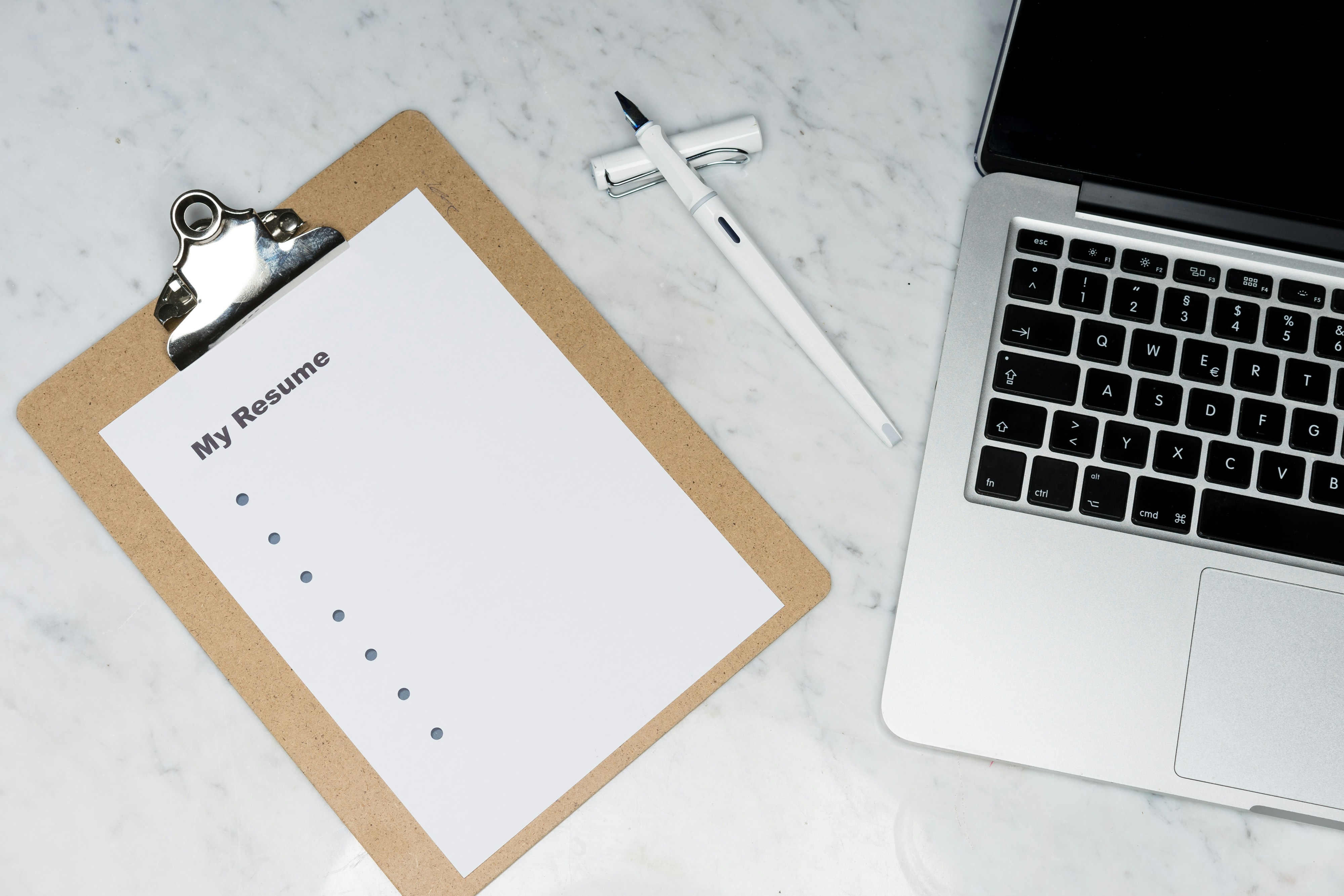
Instead of sending multiple images separately, combining them into a single PDF improves organization, readability, and sharing efficiency.
Why Convert Images to PDF?
- Combine multiple images into one file
- Maintain document structure and order
- Easy sharing across devices and platforms
- Professional presentation for documents

Step-by-Step Process
- Select images from your device
- Arrange them in the desired order
- Choose page size and orientation
- Convert and download the PDF file
Most modern tools allow drag-and-drop functionality, making the process extremely fast and user-friendly.
Important Features to Look For
- Batch image upload
- Custom page size (A4, Letter)
- Image compression options
- Reordering before export

Best Tools in 2026
- Creator Cloud – fast and simple online conversion
- Adobe Acrobat – professional-grade features
- iLovePDF – easy web-based tool
- Smallpdf – quick conversion with clean UI
Best Practices
- Resize large images before conversion
- Maintain correct order for readability
- Choose appropriate page orientation
- Compress images to reduce file size
Conclusion
Converting images to PDF in 2026 is fast, simple, and essential for professional workflows. With the right tools, you can organize and share files efficiently while maintaining quality and structure.
Convert Your Images Now
Use Creator Cloud to quickly convert images into high-quality PDFs.
Frequently Asked Questions
Can I convert multiple images into one PDF?
Yes, most tools support batch image conversion.
Will image quality reduce after conversion?
No, unless compression is applied during conversion.
Which format is best before converting?
JPG or PNG are commonly used for PDF conversion.